Set up once, then it just runs
ChatPilot runs as a background service that starts with your computer and restarts itself. Beta testers get the full setup guide with their invite; this is what to expect.
What you need
| A computer | macOS 14 or newer (Apple Silicon recommended), Linux (desktop, server or Docker) or Windows 10/11. It handles your chats while it's on, so a machine that stays on works best. |
|---|---|
| Claude | A Claude subscription and Claude Code, logged in once. ChatPilot uses it, so there's no separate AI bill. |
| A Telegram bot | Your own control bot, made in two minutes with Telegram's @BotFather. It's how ChatPilot reaches you on your phone. |
| Optional | whisper.cpp for voice messages, Tailscale for the panel on your phone, a local AI model (Ollama or LM Studio) for chats that must never leave your computer. |
Setup
Install and start
A few commands install ChatPilot and start it as a background service (launchd, systemd or Task Scheduler). It opens the panel in your browser.
Connect your apps
In the panel, under Access: log in to Telegram, scan the WhatsApp QR code, add your Slack workspaces and mailboxes, and on a Mac allow access to Messages.
Switch chats on
Choose per chat (or per connection) Store, Store + AI or Store + local AI. Everything you leave off stays off.
Tell it about your work
Optional: a few notes about your clients and team, the folders Claude may read, and data sources such as your admin panel or CRM.
What a normal day looks like
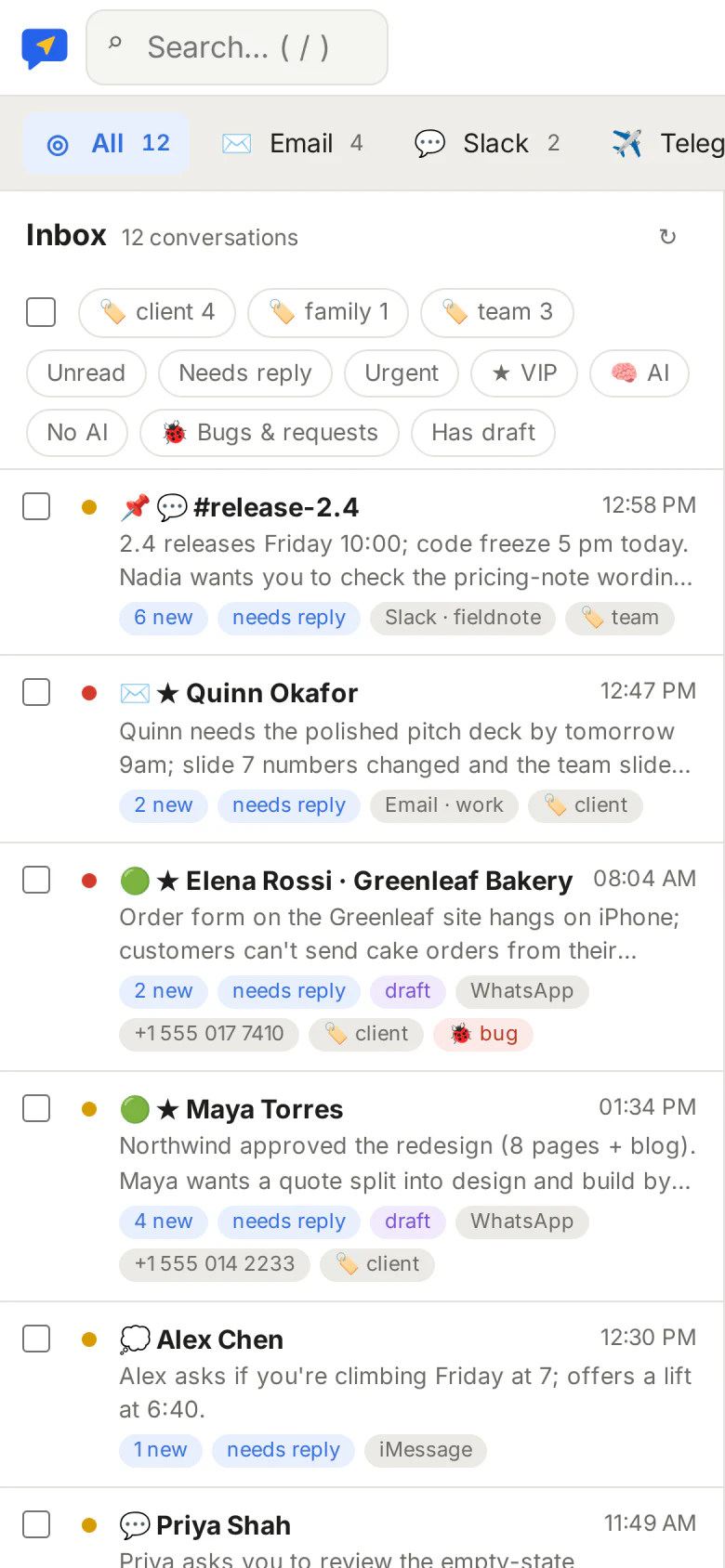
- Urgent messages reach you in your Telegram bot; the rest waits in the inbox, sorted.
- In the morning and late afternoon, a digest of what's waiting on you.
- Open a chat, read Claude's draft, change a word, press Send.
- Busy group? “What did I miss?” and you're up to date.
- ChatPilot checks for updates and tells you; it can also install them itself.
Get an invite
ChatPilot is in a private beta for macOS, Linux and Windows. Leave your email and we'll send you an invite and the setup guide when there's room.
We only email you about your invite and the beta. Unsubscribe at any time. How we handle your email.