Bring the AI you already use
ChatPilot does the inbox, the CRM card, the reminders and the safety rules. The thinking (sorting, drafts, summaries, discussions) is done by the AI you choose, under your own account with its maker.
Which AIs it works with
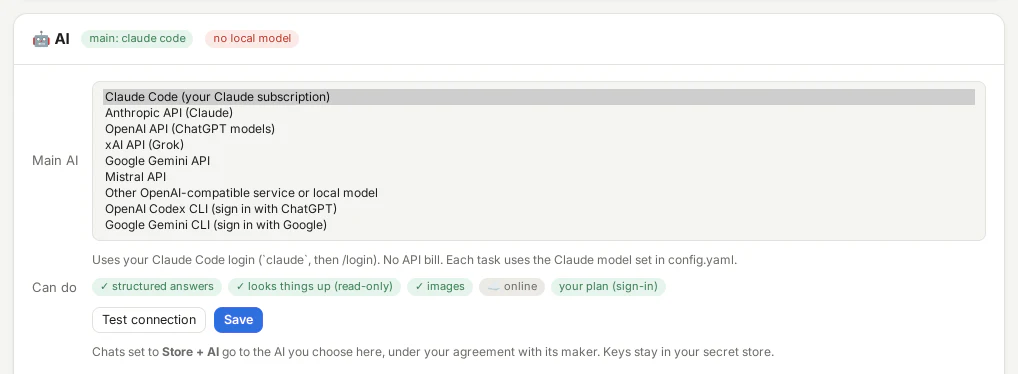
Choose your main AI in Access → AI, or in the settings file. Find models lists what the service offers, and Test connection makes one tiny call so you know it works before you save.
| Main AI | How you connect |
|---|---|
| Claude, through Claude Code (the default) | Your Claude subscription: log in to Claude Code once |
| Claude, through the Anthropic API | An API key |
| ChatGPT models, through the OpenAI API | An API key |
| ChatGPT plan, through the OpenAI Codex CLI | Your ChatGPT subscription: sign in with ChatGPT |
| Gemini, through the Google Gemini API | An API key |
| Gemini, through the Google Gemini CLI | Sign in with Google |
| Grok, through the xAI API | An API key |
| Mistral, through the Mistral API | An API key |
| Any OpenAI-compatible service or local server (Ollama, LM Studio, vLLM, OpenRouter …) | Its address, plus a key if it needs one |
Subscription, API key or local
ChatPilot never bills you for AI. What you pay for the AI goes to its maker, under your own account, in one of three ways.
Your subscription
You sign in a program on your computer (Claude Code, the Codex CLI or the Gemini CLI) with the plan you already have. ChatPilot uses that program, so there is no separate bill; what it does counts towards your plan's usage limits like anything else you do with it.
An API key
You create a key in the developer console of Anthropic, OpenAI, xAI, Google or Mistral and paste it into ChatPilot, where it goes into your system's secret store. The maker bills you for what you use, separately from any chat subscription you have there.
A local model
Ollama or LM Studio run a model on your own computer: free, and nothing leaves the machine. Local models are slower and less sharp than the big online ones, especially for drafts, so many people use one next to their main AI rather than instead of it.
Good to know about the Gemini CLI: Google moved free and Google One accounts from the Gemini CLI to another command-line tool, which ChatPilot doesn't drive yet. With such an account, use the Gemini API with a key instead.
What each AI can do here
The AI card shows it honestly, per AI:
- Structured answers. Sorting, drafts and proposals come back in ChatPilot's own format: with the AI's own schema option where it has one, otherwise checked and asked again.
- Lookups, read-only. Claude Code reads the folders you allow and the read-only tools of your connected systems itself. With any other AI, ChatPilot runs those lookups for it: the AI asks for a file or a read-only tool, and ChatPilot checks and runs it, with the same folders, chat bindings and account checks, a limited number of steps, and never a tool that writes.
- Images. Screenshots you paste into a discussion go along to an AI that can see them. A model without vision answers from the text and says so; the two command-line tools can't look at pictures, so a question with one is refused there before anything is kept.
- On this computer or online. So you know where a chat goes before you switch it on.
Where your chats go
- Chats set to Store stay on your computer. No AI reads them.
- Chats set to Store + AI go to the main AI you chose, under your agreement with its maker.
- Chats set to Store + local AI only ever go to the local model you added, never to the main AI, even when the main AI is itself a local server. If the local model isn't running, ChatPilot waits.
- Next to the main AI you can let a second model (local, or another OpenAI-compatible service) take over single tasks: sorting, summaries, translation, drafts, discussions, learning your style, the morning briefing.
- Your keys stay in your system's secret store, and the AI never gets a tool that changes anything, whichever AI you chose.
More on Privacy & safety, and the story behind it in Use your own AI.
Get an invite
ChatPilot is in a private beta for macOS, Linux and Windows. Leave your email and we'll send you an invite and the setup guide when there's room.
We only email you about your invite and the beta. Unsubscribe at any time. How we handle your email.